Thursday, May 2, 2013

Selection of source in the new GL MultiProvider

Introduction BI Content comes with many MultiProviders which combine a Basis Cube and a Virtual Cube.  A Basis Cube is one where data is stored physically in the BW data warehouse whereas a Virtual Cube is a virtual (as opposed to real) construct which extracts data from other sources and presents the data as if it were a cube.  An example of these MultiProviders is 0FIGL_M20 which comprises the Basis Cube 0FIGL_C20 and the Remote Cube 0FIGL_R20.

Delivered with BI Content are Queries which allows the user to choose the cubes from which the data is to be reported.

Fig 1 Query Value Selection

Constituent Cubes
0FIGL_C20 contains GL balances which have been copied/replicated to BW through the standard ETL.

0FIGL_R20 is a Virtual Provider which accesses the data through DataSources in a SAP ECC system and uses transformation like a Basis Cube.  Other types of Virtual Providers use BAPIs or Function Modules to directly access source data.

In addition to the above cubes, the multiprovider also includes an InfoObject 0ACCESSTP.  The purpose of the existence of this InfoObject in the MultiProvider is to provide the ability to select between the above two sources. 

Fig 2 MultiProvider


Variables in the Queries
The delivered queries 0FIGL_M20_Q0001 uses the InfoObject 0ACCESSTP as a Characteristic Restriction to allow the user to select between the two cubes.  The options are
# System Proposal
C Access to Replicated Data
R Direct Access to Operative Data

The selected value is then used to populate the variable 0P_INFOPROV_SREP with the technical name of the source InfoProvider.  The InfoObject 0INFOPROV, for which 0P_INFOPROV_SREP is a variable, is automatically included when a MultiProvider is constructed.  When used as a characteristic restriction, this enables the Query to only execute one part of the subquery, ie either the Basis Cube or the Virtual Cube.  This allows the MultiProvider query to run more efficiently.

The logic to populate the variable 0P_INFOPROV_SREP is in the ABAP function (SAP exit) RSVAREXIT_0P_INFOPROV_SREP.  The logic goes something like this :
if accesstype = C
  infoprovider = 0FIGL_C20
else
  infoprovider = 0FIGL_R20

 Fig 3 Dataflow

BEx variables SAP exits

Variables
BEx variables are parameters of a query which are filled with values when the query is executed.  The assignment of values can be done by the user when prompted or automatically during run time by the system in exits.  They are implemented as ABAP functions which are called when the query is invoked.
Variables are defined as exits in its processing type in Query Designer while the logic behind it is coded in ABAP.

Fig 1 Query Designer

The technical name for the variable, which is a Query object, is shown as (2) above, while the processing type (3) signifies that this is implemented as an SAP Exit.

SAP exit
SAP exits are delivered as part of Business Content while Customer exits are specified by the customer.  Searching for sap customer exit variable in a search engine should turn up various articles and documents on how to create a new customer exit.
The ABAP function name for SAP exits is formed by concatenating RSVAREXIT_ with the technical name of the exit.  For instance, the function name for the variable 0P_GL_ACCTP is RSVAREXIT_0P_GL_ACCTP.

The list of all variables with their processing type can also be found in table RSZGLOBV.

Code stepthrough
To understand or to step through the exit function, first open the function in an SAP ABAP session using transaction SE37.  Then create an External Breakpoint at the first line of code in the function module.  Remember to create the breakpoint using the login id as in the query.  When the query is run, processing will stop in the ABAP debugger.

Fig 2 Function Editor

You can now step through the code line by line.

Sunday, September 19, 2010

Citizenship Ceremony

Today is the culmination of my journey in becoming a new citizen of my adopted country, a journey that took slightly less than a year.  Of course, the preamble to this short journey began 28 years ago.  However, when I first came to this island nation as a student, it certainly did not once cross my mind that this will be the land whose passport I will bear.  But here I am.

The citizenship ceremony was one of many held throughout the country on this day.  It was a simple, yet very Singaporean experience.  Upon registration, I received a ‘goody bag’, like the ones I give out for my son’s birthday to all his guests on his birthday party.  The program proper started with 2 propaganda films, ‘propaganda’ because it was certainly meant to whip up emotions.

This was followed by a short speech by a Member of Parliament who was the Guest of Honour.  He proceeded to present the citizenship certificate and Identity Card to each of us on stage.  There were in all close to 300 percipients.

At the end, a small makan session.  Food-wise, it was OK.

So, that was it.  From this point hence, I am a true blue (or red) Singaporean.

However, that was not it actually.  Roughly two years from now, I will have to collect my Renunciation Certification from the Malaysia High Comm and to present it to the Singapore Immigrations.  Hope I remember to do that.

Thursday, September 16, 2010

Planning for a Taiwan Holidays

I am planning for a 10 day Taiwan family vacation during the end-of-year school holidays.  My party includes my 70 year old parents and child of 11.  The age range spans 60 years.  So, where do I start?

I obtained a lot of the information I need from blogs and websites like trip advisor and virtual tourist.  However, the blog postings are more suitable for young travellers.  Still, they were sources of really useful information.

Air Tickets
First off, the air tickets.  No tickets, no go.  Given the pickup in air travel this year, I had better got going.  In any event, two days after I booked my tickets, there was news that airlines are hiking the fares.
Two weeks ago, in early September, I booked our tickets online with Cathay Pacific.  The reason why I chose CX is because I plan to stop by HongKong  for 4 days on the way back to Singapore.  A return ticket cost me SGD690 per person.

Itinerary
After that the details of the itinerary.  I have never liked going on a tour, certainly not one-stop-a-night kind of a rush.  Planning your own free and easy trip will certainly cost more, in my case, probably double what I would have paid on a package tour.  For me, vacation has to be easy and slow.  What I enjoy most in my travels are the taking in of the atmosphere rather than the sights themselves.  Waking up at 9am and having a leisurely start with a cup of coffee in a cafe is the norm.

Of the 10 days, 8 will be in Taipei and 2 in Hualien.

Arrival
Taiwan Taoyuan International Airport is the international gateway into Taipei.  There are numerous modes of transport from here to Taipei.  Among them are buses and taxis.  Taxis typically cost NT$1100 and can accomodate 4 persons each.  I will require two taxis for my party.
I instead intend to book a van from Oscar Limo.  An 8-seater van will cost NT$1400.  I was told by a Taipei taxi driver whom I have called that only certain taxi companies are allowed to pick up passengers from the airport.

Taipei
While in Taipei, my itinerary will include the following places :
Hopefully, that should provide something for everyone.

Hualien and Taroko Gorge
Thrown in at middle of our trip is an excursion to Hualien.  The main purpose of this is the Taroko Gorge.  Some make it a day trip, leaving Taipei at 8am for a two hour train journey to Hualien, Taroko exploration by taxi before another two hour train journey back to Taipei.
Instead, I have planned to set out for a two nighter in Hualien.  We will leave Taipei about noon time, stay a night in Hualien.  The next day is a full day out to Taroko.  On the final day, a short half day excursion to somewhere.

Accomodation
While in Taipei, I will stay at a small hotel near the Taipei Railway Station.  This is a big transportation hub.  That should make it convenient for me to travel to Hualien on the 2 day excursion.  More of that later.
For my hotel, I first checked out the online hotel booking sites like agoda.  Finally, I figured that I should just book directly with the hotel since my schedule requires me to stay there twice, at the beginning of the trip and after the Hualien excursion.  Besides, I have to find out if we can leave my luggage in the hotel while we are away.
As it turned out, this is the cheapest option, albeit by just tens of NT$.

For Hualien, I opted for their local bed and breakfast, also known here as minsu.

Transportation
While in Taipei, we will rely mainly on public transportation.  The mass transit system is supposed to be really modern and efficient, hence proximity to a station is high on my priority when looking for accomodation.  Besides, if we were to take taxis, one will not accomodate all of us and having two taxis is more trouble than is worth it.
For our day trips, I have booked a driver, sourced from comments in blogs.

Travel from Taipei to Hualien will be by train on the Taroko Express.  Booking can be done on the Taiwan Railways website two weeks in advance.  Booking Instructions

For the Hualien excursion, I have also booked a driver to take us to Taroko Gorge and for another half-day trip while we are there.

Reference Blogs
I must express great gratitude to the following blogs :
Taiwan 2009
Kampung Boy City Gal
The information has been invaluable.

Friday, June 4, 2010

Setting up SAP Netweaver 7.01 TestDrive for BW

To set up the stock SAP Netweaver 7.01 Windows TestDrive for BW, first I need to create a new SAP client.  A client is kind of like a sandbox, a work environment isolated from other clients.  This is not necessary but I rather work in my own client than to use clients delivered by SAP.  This way, I can do what I want, scratch it, and to re-create it.

Firstly, change the profile such that it allows for a standard SAP* login.  SAP* is a user that is automatically created whenever a client is created.  The system is defaulted to disallow this user, for security reasons.

To do this, login to client 000, run transaction RZ10.  For the profile, select NSP_DVEBMSGS00_xxx, where xxx is the name of your server.

If there is no profile available, then from the menu Utilities | Import profiles of active server

Select Extended Maintenance and click on Change.  Create the following parameters
login/no_automatic_user_sapstar=0
login/min_password_lng=3
Save and activate the profile.  The profile now takes a new version.
Now, restart the Application Server.

This time login to the newly created client using sap* with the default password pass.
Do a Client Copy by running transaction SCCL, and copy profile SAP_ALL, from Client 000 and User Masters 000.
Click Start Immediately followed by Continue.
This process took me 14 minutes.

Set this new client as the BW client.  There can only be one BW client per SAP instance.  Do this through the transaction SE16, table RSADMINA, set the field BWMANDT to 100.


Restart the SAP service and this time login to the BW client 100 using the userid BCUSER.
If you want to, change the default login client in the profile with the parameter  login/system_client=100.  While you are at it, you can remove the two parameters set up earlier, ie login/no_automatic_user_sapstar and login/min_password_lng.


Define a logical system for the client using SCC4.  Select client 100 and in the Logical System, define a new Logical System and assign it to this client.  Click on the button to the right of Logical System, Maintain Entries, continue without Specifying Project, select Business Information Warehouse.


Create a Logical System by giving it a name.  Create a new transport request, if required.
Now, assign the newly created Logical System to our client in the SCC4 screen.

Run transaction RSA1, and Activate and Replicate As Well when prompted.


Wednesday, June 2, 2010

Tweaking SAP Netweaver 7.01 ABAP on VM

The SAP system now needs to be tweaked.  This is to allow it to run comfortably in a VM with limited resources.  My setup is limited by the host machine which runs 32-bit Windows 7.  32-bit Windows have access to only 3GB of RAM or slightly more, and that is if the hardware allows it.  This is so, even if the machine has 4GB of RAM.

I have initially assigned 1.5GB of RAM to the VM, but there seems to be quite a bit of disk thrashing.

Tweaking the OS
This is when I started googling to see if anything can help my poor harddisk.
1. Stop NTFS from updating the access timestamp on the filesystem.  This is done by adding an entry to the registry.  Using regedit, add to HKLM\SYSTEM\CurrentControlSet\FileSystem an entry NtfsDisableLastAccessUpdate (DWORD value of 1).

2. Turn off System Restore through Control Panel , System, System Restore

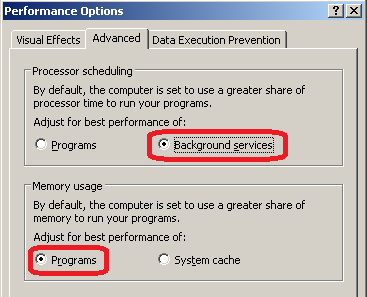
According the SAP Help, in the section on SAP Memory Management (BC-CST-MM), it states that 'Windows file cache directly competes with SAP programs for physical memory by pushing them out of the memory.'  Hence, following the instructions there, set System Properties  → Advanced  → Performance → Settings → choose Advanced → Processor Scheduling → Background services.  For Memory Usage → Programs


I decided to then install Process Explorer, a really fantastic system tool.  Guess what, the memory usage is at 2.5GB, way above the 1.5GB I have given to my VM, and above the 1GB minimum stated in SAP's minimum requirements.  I suppose that is for a physical machine where swapping is acceptable.


Next up, we'll see if SAP's parameters can be tweaked to reduce its memory consumption.

Tweaking the Database
Move database files to a fixed preallocated virtual disk.
Create a new preallocated vmdk file.  Then add to the OS using Administrative Tools; Computer Management; Disk Management.

Then using the Database Manager, move the volumes and log to the new drive using the instructions here.  Essentially, bring database offline, do a OS file copy to the new drive, point the volumes there, and finally bring database back online.  I am missing the dbmrelocate executable which would have made it easier.  This allows me to move the C:\sapdb\NSP\sapdata and C:\sapdb\NSP\saplog, but cannot find how to move C:\sapdb\NSP\db.  Well, that may suffice for now. 

All these work is not sufficient to stop the thrashing.  Watch this space for updates.

Monday, May 31, 2010

Installing SAP ABAP Test Drive in an XP Virtual Machine

SAP has been providing downloads of their latest Netweaver platforms on their SDN website.  This is a great way to play around with their latest and greatest infrastructure software.  There is an active community in SDN with helpful instructions to guide you in your endeavour.

Note that there is no business logic included in these download packages.

Packages are available for both Windows and the various flavours of Linux.  Combinations of Java and ABAP servers (SAP call these personalities) are included in these packages.  In this blog, I detail my experiences in installing the ABAP only server on a Windows XP virtual machine.  The host computer is a Windows 7 laptop.

First, the downloads.  I downloaded the SAP NetWeaver 7.01 SR1 SP3 ABAP Trial Version from SDN.

For the virtual machine, I am using VMWare Player 3.01.  So, while the SAP packages are being downloaded, I prepared a VM with 40GB virtual drive.  I installed Windows XP and upgraded it to SP3, applying all the patches.  This process took me 3 hours.  I gave the VM 1.5G of RAM.

Now, with the VM ready with Windows XP SP3, I proceeded to install the SAP server software.  I appreciate this blog posting greatly, followed its steps closely and after 5 hours of harddisk whirring, the software is finally got installed.

Oh, this one stumped me for a while.  Use winrar to extract the downloaded files.  I had lots of problems with zip7, with messages like corrupt archives.  Just extract the part1.rar and it will also extract part2.rar.

While the installation is going on, it does not hurt to look at the documents contained in the install package.  Open up the \DOC\html\index.htm file found in the extract directory.

Now is time to install the rest of the tools.  Installation notes can be found in SAPNWABAP701SR1_TRIAL/DOC/html/gettingstarted.htm

The following tools will be installed :
1. SAPGui - this is what you use to access SAP;
2. Database Manager - a program to administer the SAPDB database;
3. SQL Studio - you can perform SQL queries here.

To start and stop SAP, use the SAP Management Console.  Select the SAP system, in our case it is NSP, and click start.


To login to SAP, start SAPGui, create a login connection and log in using one of the userids provided.

The installation comes with a 1-month license.  You can request and update the license with a new 3-month extension.  Instructions are in the Getting Started webpage in the Installation Documentation.

So, here we are.  SAP running in a Windows XP virtual machine.

I have yet to start exploring it.  Once I have done that, I will update on the memory requirements, as I think the 1.5GB of RAM may not be sufficient.

There seems to be a whole load of disk thrashing, given the limited resources given to the VM.  That's the topic of another post.